Workspace walkthrough
How to Use GPT Image 2 on gpt-image2.cc — five-minute onboarding
How to Use GPT Image 2 here means browser-only: sign in, open /generate, choose text-to-image or image edit, spend credits, download. How to Use GPT Image 2 efficiently is generate → compare two seeds → edit winners with ONLY clauses → export. This page maps every control in the gpt-image2.cc workspace so How to Use GPT Image 2 tutorials from other sites translate without guessing which button is which.
How to Use GPT Image 2 — timeline
- 1
Open /generate
Sign in if prompted. The workspace loads the GPT Image 2 collection with text-to-image and edit modes in one panel.
- 2
Set size & quality
Pick landscape, square, or portrait before you prompt—aspect ratio is compositional, not just a crop on export.
- 3
Write or paste a brief
Use subject + setting + style + lighting. Quote in-image text verbatim when layout copy matters.
- 4
Generate twice
Run two seeds, pick the cleaner frame, then optionally upload it for a focused edit pass.
- 5
Download PNG
Export the approved still for Figma, ads, or handoff. Keep the winning prompt in your team doc for reruns.
Workspace controls
Prompt field
40–120 words for most stills; JSON-style briefs work for complex diagrams.
Reference upload
One hero image for edits; say what stays locked (product geometry, face, logo).
Image size
Match ad placement—9:16 for stories, 16:9 for heroes, 1:1 for cards.
Quality
Draft at standard quality; switch up for client-facing exports.

FAQ
- How to Use GPT Image 2 without installing Python?
- Use gpt-image2.cc /generate—everything runs server-side through the hosted model.
- How many credits does one GPT Image 2 image cost?
- See /pricing for current per-image rates; quality and size affect cost.
- How to Use GPT Image 2 for edits only?
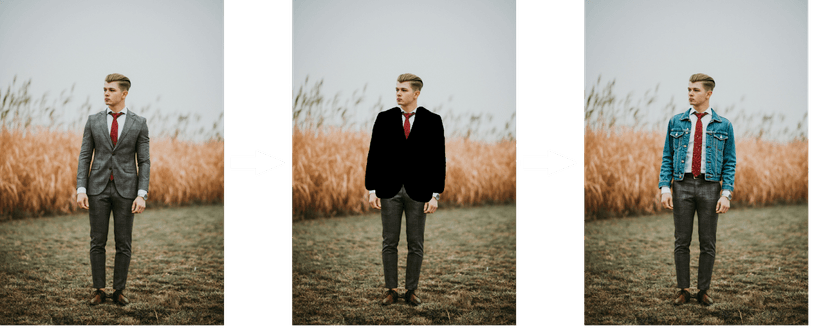
- Upload a reference, switch to edit mode, and lead with a change/preserve list.
- Where are outputs stored?
- Downloads land on your device; history may appear in your account gallery when signed in.